
Master the 3D Revolve Tool in Adobe Illustrator
Designing a realistic 3D vector football (soccer ball) is an excellent way to practice spatial design, pattern mapping, and lighting techniques in Adobe Illustrator.
While flat vectors have their place, adding dimension, perspective, and realistic shadows makes your sports designs stand out. In this step-by-step guide, we walk you through the entire design process, from creating the classic geometric panels to revolving and mapping the art onto a 3D sphere.
If you are short on time, you can also scroll to the bottom of this page to download our free premium vector 3D football pack, available in editable AI, EPS, and SVG formats.
Step-by-Step: Designing a 3D Vector Football
Step 1: Create the Hexagon and Pentagon Panel Patterns
A traditional soccer ball (Buckminster ball) consists of 20 hexagons and 12 pentagons.
- Select the Polygon Tool from the toolbar.
- Click once on the artboard and set the sides to 6 to draw a hexagon. Fill it with white and apply a thin black stroke.
- Draw a second polygon, setting the sides to 5 to create a pentagon. Fill it with solid black.
- Align the pentagon precisely against one edge of the hexagon. Use the Rotate Tool (R) to duplicate and rotate the hexagons around the central pentagon until you have a small, repeating cluster.
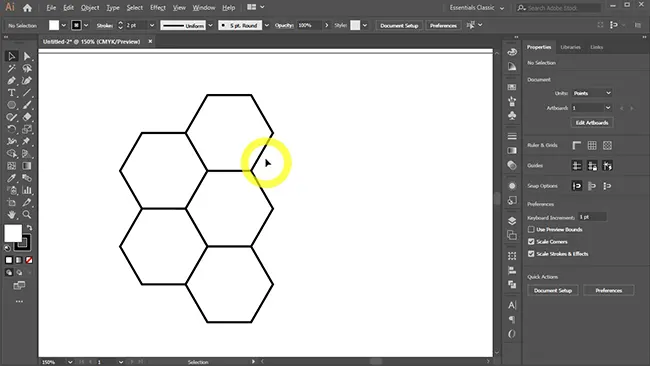
Step 2: Convert the Pattern into an Illustrator Symbol
For the 3D tool to wrap your pattern around a sphere, the pattern must first be saved as an Illustrator Symbol.
- Select your completed cluster of hexagons and pentagons.
- Group them together by pressing Ctrl+G (Windows) or Cmd+G (Mac).
- Open the Symbols Panel (Window > Symbols).
- Drag and drop your grouped vector pattern into the Symbols panel. Name it “Soccer Ball Pattern” and set the Export Type to Movie Clip or Graphic.
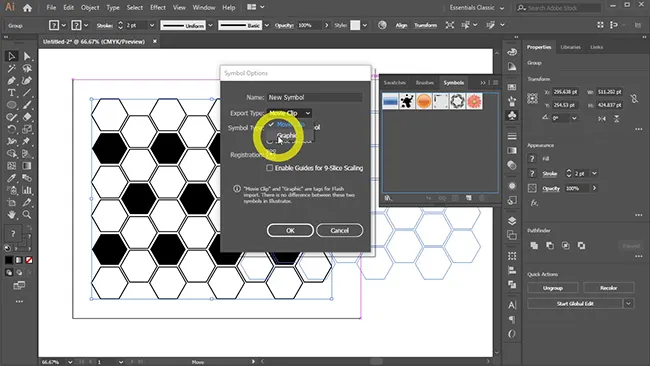
Step 3: Draw a Perfect Semi-Circle
To create a 3D sphere, you must revolve a flat semi-circle.
- Select the Ellipse Tool (L) and draw a perfect circle while holding Shift.
- Select the Direct Selection Tool (A), click on the right-most anchor point of the circle, and press Delete.
- You will be left with a perfect semi-circle path. Ensure the path has a fill color (e.g., light grey) and no stroke.
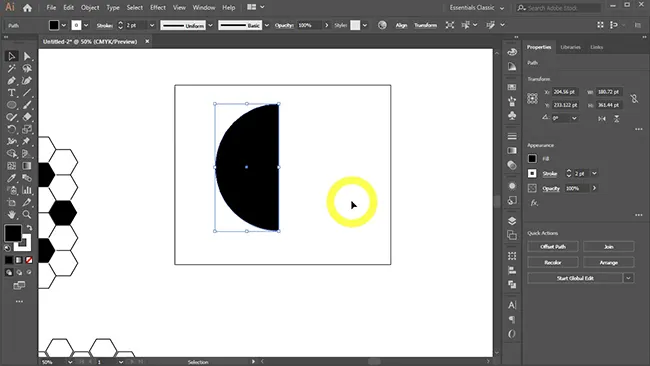
Step 4: Apply the 3D Revolve (Classic) Effect
Now, we turn the flat semi-circle path into a 3D sphere.
- Select the semi-circle.
- Go to the top menu and select Effect > 3D (Classic) > Revolve… (Note: If you are using newer versions of Adobe Illustrator CC, choose “3D and Materials” and look for the Classic Revolve option).
- In the dialog box, set the edge to Left Edge to revolve the path into a full sphere.
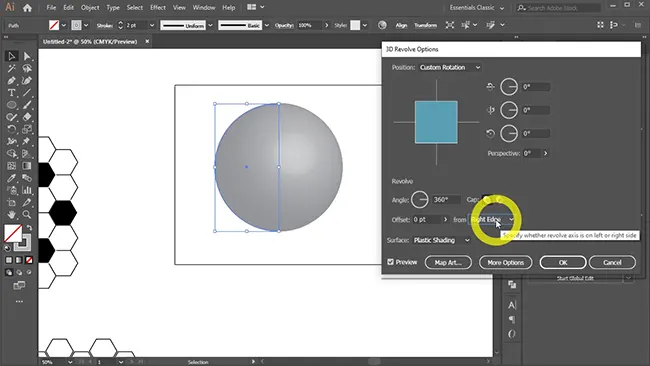
Step 5: Map the Soccer Ball Art & Adjust Lighting
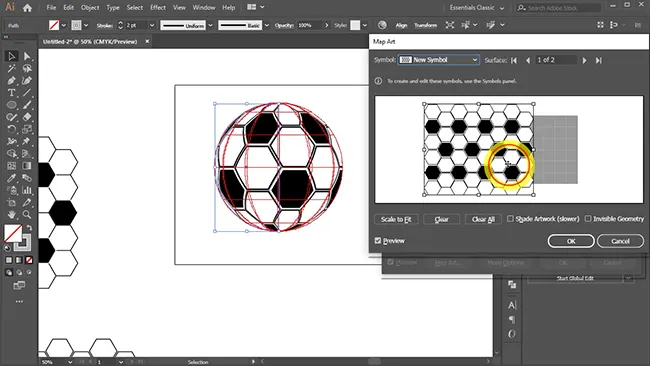
With the 3D Revolve window still open, we will wrap our pattern symbol around the sphere.
- Click the Map Art… button at the bottom of the Revolve dialog box.
- Navigate to the outer surface of your sphere (usually Surface 1 of 1 or 1 of 2).
- From the Symbol drop-down menu, select your saved “Soccer Ball Pattern“.
- Scale and position the pattern so it wraps around the sphere realistically. Check the Shade Artwork option to ensure the pattern inherits the 3D shading.
- Click OK to apply. Adjust the ambient light and shadow settings in the main 3D Revolve panel to make the reflections pop.
Download Free Premium 3D Vector Footballs
Want to skip the steps and jump straight into your project? We have designed a clean pack of high-quality, fully scalable vector 3D footballs. Perfect for sports flyers, website headers, matchday posters, or YouTube thumbnails.
File Specifications & Details
- Available Formats: AI, EPS, SVG
- Software Required: Adobe Illustrator CS6 or newer
- Layer Structure: Fully organized, grouped, and labeled layers
- License Type: Free for personal and commercial use (with attribution)
Frequently Asked Questions (FAQ)
Why is my pattern looking distorted when mapped onto the sphere?
Distortion usually occurs if your original symbol pattern is too small or if the scaling in the “Map Art” window is stretched unevenly. Try clicking “Scale to Fit” inside the Map Art window, or design a larger pattern group before saving it as a Symbol.
Can I use the newer “3D and Materials” panel in Illustrator?
Yes, but the classic “3D Revolve (Classic)” workflow is generally faster and more predictable for exact 2D vector symbol mapping (Map Art). The newer 3D toolset relies heavily on raytracing and material maps, which can slow down older computers.
Credits:
Design by CreativeAlys – Don’t forget to share your creations with #CreativeAlys!
You May Like
Vector Butterfly Collection
Butterflies are insects in the macrolepidopteran clade Rhopalocera from the order Lepidoptera, which also includes moths. Adult butterflies have large,...
Suggested Pro Downloads




Latest from @CreativeAlys YouTube Channel

70s Bubbly 3D Typography Tutorial | Adobe Illustrator

Flat 2D to 3D Stone Wall in Seconds! ⚡ #shorts #photoshop

How to Use 3D Stone Wall Logo Mockup in Photoshop (in 18 Seconds!) | CreativeAlys

Free 3D Stone Wall Logo Mockup PSD Tutorial | How to Edit & Customize in Photoshop

How to Display Latest YouTube Videos in WordPress (Free, Fast & No API Limits)

Great tutorial. Thanks for sharing your post.
This is awesome 3d vector football making tutorial. learn something’s.
Glad you liked it!
Vector is one of the most difficult and demandable photo editing technics. In your blog, you explain the whole thing and how it works in every detail. I really like your blog.
Thanks!