Introduction
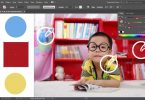
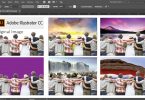
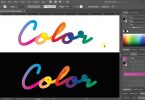
Creating soft, faded edges (also known as feathering) is a great way to blend images or shapes into the background in Adobe Illustrator. Unlike Photoshop, Illustrator is vector-based, so achieving that “blurry edge” look requires specific effects. In this tutorial, we will explore the easiest ways to feather edges for both shapes and raster images.
Method 1: Using the Feather Effect (Best for Shapes & Simple Images)
The quickest way to fade edges is using the built-in Stylize effect.
- Select your object or image using the Selection Tool (V).
- Go to the top menu and select Effect > Stylize > Feather.
- Check the Preview box to see the changes in real-time.
- Adjust the Radius slider. A higher radius creates a softer, more faded edge.
- Click OK to apply.
Method 2: Using the Gaussian Blur (Best for Soft Glows)
If you want a more dispersed fade, the Gaussian Blur is an excellent alternative.
- Select your shape.
- Navigate to Effect > Blur > Gaussian Blur.
- Adjust the radius pixel count to soften the edges to your liking.
Common Questions about Fading Edges in Illustrator
• How do I smooth the edges of an image in Illustrator?
To smooth or soften edges, the “Feather” effect is the standard tool. However, for more complex masking, you can use an Opacity Mask. Create a shape with a black-to-white gradient, place it over your image, select both, and click “Make Mask” in the Transparency panel.
• Can I feather a Clipping Mask?
Yes! If you have an image inside a clipping mask, select the clipping path (the shape holding the image) using the Direct Selection Tool (A), then apply the Effect > Stylize > Feather to the path itself.
Check out our graphic design freebies section for absolutely free access to valuable design assets that you can use and share in your projects. Browse our premium downloads if you’re looking for even more great and professional resources to enhance your work.
We have many fascinating videos and expert tips coming your way, so don’t miss out on any of the great content by visiting our YouTube Channel. Subscribe now and join our community of passionate learners and creators!
Credits:
Design by CreativeAlys – Don’t forget to share your creations with #CreativeAlys!
You May Like
THE DAY OF ASHURA | VECTOR ILLUSTRATION
Ashura is an important Islamic day that occurs on the tenth day of Muharram, the first month in the Islamic...