
The Shape Builder Tool (Shift + M) in Adobe Illustrator is one of the most powerful features for vector artists and logo designers. Instead of struggling with complex Pathfinder operations, the Shape Builder tool lets you merge, subtract, and extract overlapping shapes intuitively with just a few clicks and drag movements.
In this step-by-step tutorial, you will learn exactly how to use the Shape Builder tool to speed up your workflow and create complex vector designs easily.
Watch the Video Tutorial
If you prefer visual learning, you can watch our step-by-step video guide below to see the Shape Builder tool in action:
What is the Shape Builder Tool in Illustrator?
The Shape Builder tool is an interactive tool used for creating complex shapes by merging and erasing simpler overlapping paths. It automatically detects edges and regions of selected shapes, allowing you to quickly combine them or delete unwanted sections.
Where is the Shape Builder Tool?
- Toolbar Icon: Look for the icon showing two overlapping circles with a cursor arrow.
- Keyboard Shortcut: Press Shift + M on both Windows and Mac.
How to Use the Shape Builder Tool (Step-by-Step)
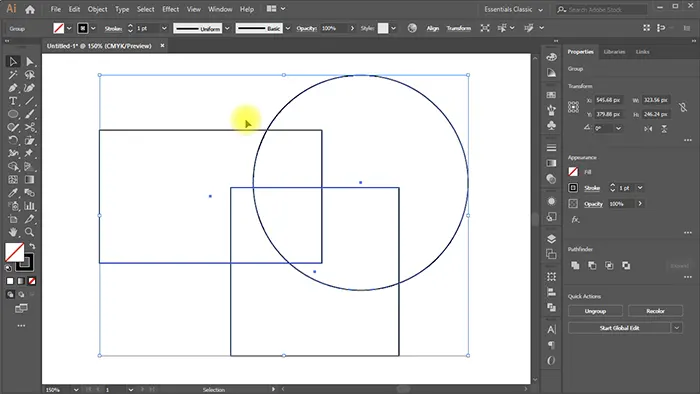
Before using the tool, make sure you have overlapping paths or shapes drawn on your artboard.
Step 1: Draw and Overlap Your Shapes
Create the basic geometric shapes (such as circles, rectangles, or polygons) that will form your final design. Ensure that the shapes overlap where you want to perform operations.
Step 2: Select the Shapes (Crucial Step)
For the Shape Builder tool to work, you must tell Illustrator which objects to target:
- Select the Selection Tool (V).
- Drag a marquee over all the overlapping shapes you wish to edit, or hold `Shift` and click each one.
Step 3: Select the Shape Builder Tool
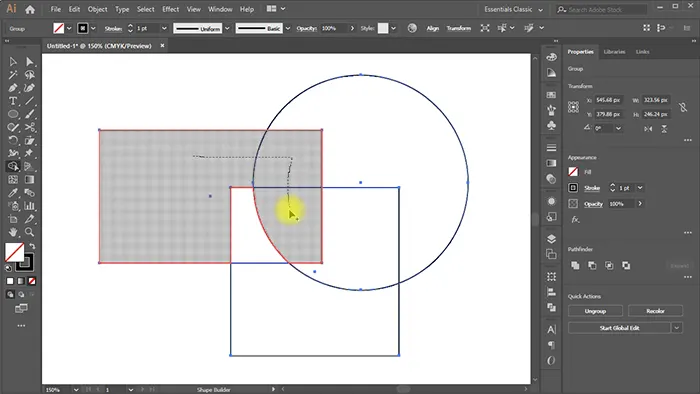
Press Shift + M or click the Shape Builder icon in the toolbar. When you hover your cursor over the selected overlapping areas, you will notice a gray mesh pattern appear over the regions, indicating they can be edited.
Step 4: Merging Shapes (Add Mode)
By default, the Shape Builder is in Add mode (you will see a small plus sign `+` next to your cursor).
- To Merge: Click and drag a line across the overlapping regions you want to combine into a single shape.
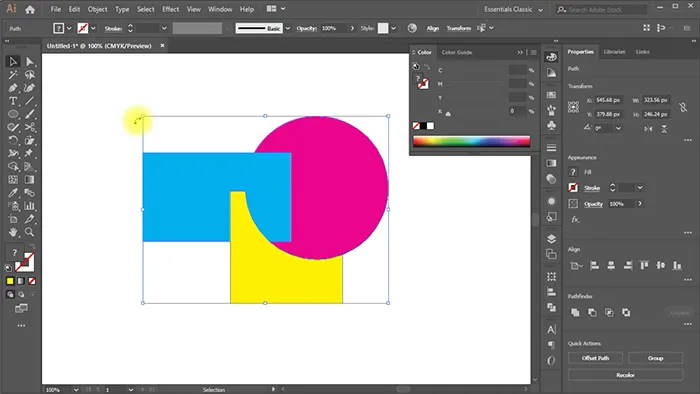
- Result: The selected regions will instantly fuse together into one clean vector path.
Step 5: Deleting or Subtracting Shapes (Subtract Mode)
To clean up your design, you can easily delete overlapping lines or unwanted regions.
- To Subtract: Hold down the Alt key (Windows) or Option key (Mac). The cursor will change to show a minus sign `-`.
- To Delete: While holding `Alt/Option`, click on the specific region you want to delete, or drag a line through multiple sections to erase them simultaneously.
Pro Tips for Working with the Shape Builder Tool
- Color Matching: If you want the merged shape to adopt a specific color, choose your fill color before dragging across the regions.
- Freeform Select vs. Straight Line: Double-click the Shape Builder tool icon in the toolbar to open its Options menu. Here, you can switch the selection style from “Straight Line” to “Freeform” for more organic drawing paths.
- Extracting Regions: Simply click once on any highlighted region without dragging. This isolates that specific section as its own independent shape.
Frequently Asked Questions (FAQ)
What is the shortcut for the Shape Builder tool in Illustrator?
The keyboard shortcut is Shift + M on both macOS and Windows systems.
Why is the Shape Builder tool not working?
The most common reason is that the shapes are not selected. You must select all overlapping paths with the Selection Tool (V) before activating the Shape Builder tool (Shift + M). Another reason could be that your vector lines do not fully overlap, leaving tiny gaps.
What does the Shape Builder tool do in Illustrator?
It allows designers to intuitively merge overlapping vector shapes, subtract unwanted sections, or extract specific regions to form completely new and complex paths. It is highly used in logo design and geometric illustration.
How do you subtract with the Shape Builder tool?
Hold down the Alt key (Windows) or Option key (Mac) to change the tool cursor to a minus sign (-), then click or drag over the regions you want to delete.
Credits:
Design by CreativeAlys – Don’t forget to share your creations with #CreativeAlys!
You May Like

Simple Line Icons
Here is an amazing collection of simple line icons for web and UI designs created with thin strokes and flat...














It was really a great tutorial. I am really benefited a lot
I just love this tool. It lets you create amazing custom logos. Most of my logos are created because of Shape builder tool.