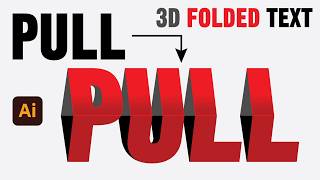
Are you looking for a unique 3D text effect? Adding 3D elements to your text is one of the best ways to make your graphic design projects, posters, and logos stand out.
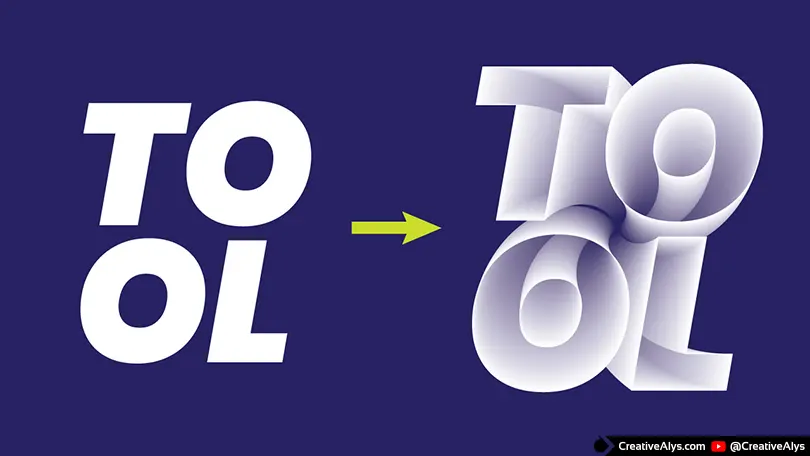
In this quick tutorial by CreativeAlys, we will show you exactly how to create a 3D interlocking text effect using Adobe Illustrator. The best part? It looks incredibly complex, but it takes less than 3 minutes to achieve!
Watch the Video Tutorial
Before we break down the steps, watch the full process here.
(Don’t forget to subscribe to our YouTube channel, @creativealys, for more weekly design tutorials!)
Step-by-Step Guide: How to Make Interlocking 3D Text
If you prefer reading the steps, here is a quick breakdown of how we achieved this effect:
1. Set Up Your Base Typography
Start by typing out your text (like “TOOL”). Choose a bold, thick font. Thick fonts work best for 3D extrusions because they give your 3D text effect plenty of surface area to reflect light and shadow. Convert your text to outlines (Shift + Ctrl/Cmd + O) so you can manipulate the individual shapes.
2. Create Copy of the Typography
Select your outlined text and create a Back copy (Ctrl/Cmd + C, Ctrl/Cmd + B) of the typography. Hold (SHIFT+ALT) to scale down the back copy for blending.
3. The “Blend” Magic
This is where the magic happens! Blend the 2 typography texts using the Blend Tool; Object > Blend > Make. Increase specified steps in Blend Options to create a smooth blending between the two texts!
4. The “Interlocking” Secret
To make the letters look like they are weaving through each other, you need to rotate the back copy using Effect > Distort & Transform > Transform. Set the Rotate Angle to -60.
5. Adjust Colors and Lighting
A realistic 3D text effect isn’t complete without proper lighting. Apply proper colors and stroke colors to your shapes to mimic highlights and deep shadows. This contrast is what gives the “tube” effect its realistic, popping volume!
Want More Illustrator Tips?
Mastering typography in Adobe Illustrator opens up a whole new world of creative possibilities. If you found this 3D text tutorial helpful, make sure to check out our graphic design freebies section for absolutely free access to valuable design assets that you can use and share in your projects. Browse our premium downloads if you’re looking for even more great and professional resources to enhance your work.
Credits:
Design by CreativeAlys – Don’t forget to share your creations with #CreativeAlys!
You May Like
Floral Corners Border
Enhance your projects with this beautifully crafted Floral Corners Border vector, designed with elegant black-and-white floral motifs placed perfectly in...